Good Lock
Screenshots
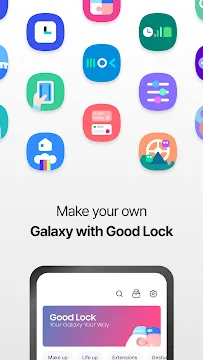
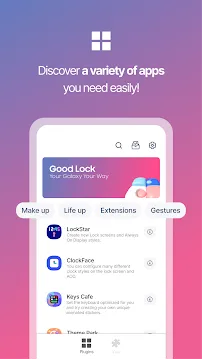
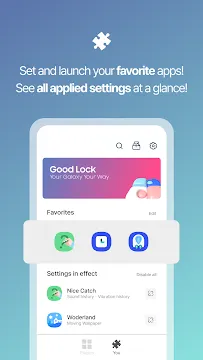
Samsung Good Lock is the ultimate customization suite for Galaxy smartphone users. It is not just a single app but a powerful ecosystem of plugins. These tools allow you to change almost every part of your phone’s interface. If you find the standard One UI settings too limited, Good Lock is the perfect solution for you.
This app empowers you to redesign your mobile experience from the ground up. You can modify your lock screen, notification panel, and even your keyboard. It provides a level of personalization that goes far beyond the basic Android options. Use it to make your device truly unique and improve your daily productivity.
What Exactly Is Samsung Good Lock?
Samsung Good Lock is not a single application. It is a powerful suite of modules or plugins. Each module acts as a mini-app that targets a specific part of your phone.
When you download the main Good Lock app, it acts as a central hub. From there, you choose which features to install. This modular design keeps your phone fast. You only download the tools you actually want to use.
Who Developed Good Lock?
You might worry that deep system changes require risky software. However, Good Lock is developed by Samsung’s internal team.
It is an official first-party project.
- The app is safe, secure, and stable.
- It does not require “rooting” your phone or voiding your warranty.
- Samsung engineers use this app to test experimental UI features.
Because it is official, the modules integrate perfectly with your system. They feel like a natural part of the software rather than a clunky overlay.
Device Compatibility and Requirements
Good Lock is exclusive software. It does not work on every Android phone. You must meet specific criteria to use it.
- Samsung Exclusive: You can only use it on Samsung Galaxy phones and tablets.
- One UI Required: It is designed specifically for Samsung’s One UI software.
- Galaxy Store Access: You typically download it from the official Galaxy Store, not the standard Google Play Store.
If you own a Google Pixel or a Motorola device, you cannot install Good Lock. It relies on the specific code found only in Samsung devices.
What Can You Customize?
Good Lock allows you to change almost every visual element of your phone. Here are some popular things you can do:
- Lock Screen: Move the clock, change the notification style, and add new shortcuts.
- Navigation Bar: Change the icons of your back and home buttons or add extra buttons for screenshots.
- Quick Panel: Change the colors of your Wi-Fi and Bluetooth toggles to match your wallpaper.
- Multitasking: Change how your recent apps look. You can switch from a standard list to a grid or a stack.
- Keyboard: Create custom themes for your Samsung Keyboard with unique typing effects.
How to Download and Install Samsung Good Lock APK For Android
Samsung Good Lock is the ultimate customization suite for Galaxy users. It allows you to redesign your lock screen, change your multitasking layout, and tweak your notification panel. Since this app is region-restricted in some countries, many users need to install it manually.
Follow this guide to learn how to download and install the Samsung Good Lock APK safely and effectively.
Why Use Samsung Good Lock?
Good Lock is not just a single app. It acts as a hub for various “modules.” Each module targets a specific part of the Android interface. Here are a few things you can do:
- LockStar: Create a unique layout for your lock screen.
- Home Up: Modify your home screen grid and folder styles.
- QuickStar: Change the colors and icons in your quick settings panel.
- MultiStar: Enhance your multi-window and split-screen experience.
Before You Start: One Quick Check
First, confirm your device is compatible. Good Lock works on most Samsung phones running recent Android versions. Specifically, it supports:
- Samsung Galaxy devices with One UI.
- Android 10 or newer.
Then, enable one important setting. You must allow installations from unknown sources. This gives you permission to install apps outside the official store.
Step 1: Enable Installation from Unknown Sources
Android security blocks apps from outside the Google Play Store by default. You must change this setting before you can install an APK file.
- Open the Settings app on your Samsung device.
- Scroll down and tap on Security and Privacy.
- Find and select Install unknown apps.
- Choose the browser you will use to download the file (e.g., Google Chrome).
- Toggle the switch to Allow from this source.
Step 2: Download the Good Lock APK
- Open your mobile browser.
- Visit Filetomob.com.
- Search for the “Samsung Good Lock APK Download”.
- Navigate to the app page
- Click the download APK button on the website.
- Wait for the file to save to your device.
Step 3: Install the Good Lock App
Once the download finishes, you can proceed with the installation. This process is quick and straightforward.
- Open the My Files app or your notification shade.
- Tap on the downloaded Good Lock APK file.
- A prompt will appear asking if you want to install the application.
- Tap Install.
- Wait for the “App Installed” message to appear on your screen.
Step 4: Setting Up Modules
When you open Good Lock for the first time, the app may look empty. This is because you must download individual modules to start customizing.
- Launch Good Lock: Tap the icon in your app drawer.
- Browse Modules: Look through the “Make Up” and “Life Up” tabs.
- Download Modules: Tap the download icon next to a module like Theme Park or Pentastic.
- Apply Changes: Open the module within Good Lock and toggle your preferred settings.
Important Tips for a Smooth Experience
Keep these points in mind:
- Update Good Lock regularly. New versions fix bugs and add features.
- Some modules may not work on older Android versions.
- If the app crashes, clear its cache from Settings > Apps.
- Uninstall the app if you face system issues. Your phone will return to normal.
Troubleshooting Common Issues
Sometimes, the app might not work as expected. Use these tips to fix common hurdles:
- App Not Installed: This usually happens if the APK version is incompatible with your Android version. Ensure you have the correct file for your One UI version.
- Modules Not Showing: If you live in an unsupported region, the modules might not appear. You may need to remove your SIM card and use a VPN to see them for the first download.
- Parse Error: This indicates a corrupted download. Delete the file and try downloading it again.
How to Use Good Lock After Installation
Now the fun part starts. When you open Good Lock, you will see a list of modules. Each module changes a specific part of your phone.
For example:
- LockStar: Customizes the lock screen.
- QuickStar: Changes the notification panel.
- Task Changer: Redesigns the recent apps menu.
- NavStar: Tweaks the navigation bar.
Simply tap any module to download it. Then, turn it on and adjust the settings. Your changes appear immediately. No restart is needed.
Unlock Your Samsung’s Hidden Powers with Good Lock APP
Samsung Galaxy users often want more control over their phones. The standard One UI software is great, but it has limits. This is where Samsung Good Lock becomes essential.
Good Lock is a powerful customization suite. It allows you to redesign almost every part of the Android interface. Below is a breakdown of the top modules you need to transform your device.
1. LockStar: Personalize Your Lock Screen
The lock screen is the first thing you see. LockStar gives you total creative freedom over this space. You can move the clock to any corner or change the style of your notifications.
- Custom Shortcuts: Add more than two apps to your lock screen.
- Wallpaper Scaling: Adjust how your background fits the screen.
- Placement Control: Drag and drop icons and widgets anywhere you like.
2. QuickStar: Clean Up the Status Bar
Your status bar can get cluttered with icons for Bluetooth, Alarms, and NFC. QuickStar helps you declutter. You can hide specific icons to keep a minimalist look.
- Clock Position: Move the time to the left, right, or hide it entirely.
- Color Themes: Change the transparency and colors of your Quick Panel.
- Indicator Visibility: Choose which system icons appear in the top bar.
3. Task Changer: Rethink Recent Apps
The default horizontal scroll for recent apps isn’t for everyone. Task Changer (often found inside the Home Up module) changes how you switch between apps.
- Layout Styles: Choose between Grid, Stack, List, or Vertical List.
- Mini Mode: Shrink the app previews for easier one-handed use.
- Blur Effects: Adjust the background blur when the task switcher is open.
4. Home Up: Master Your Home Screen
Home Up provides deep settings for your launcher. It improves how you interact with your desktop and folders.
- Grid Size: Increase the grid density to fit more apps on one page.
- Folder Customization: Change how folders open and look.
- Share Manager: Customize the “Share” menu to hide apps you never use.
5. NavStar: Enhance Navigation
Whether you use buttons or gestures, NavStar makes navigation better. It adds functionality that Samsung does not include by default.
- Extra Buttons: Add a button to pull down the notification shade or take a screenshot.
- Custom Icons: Replace the standard back, home, and recents icons with your own designs.
- Gesture Sensitivity: Fine-tune the “back” gesture area to avoid accidental swipes.
6. NotiStar: Never Miss a Notification
Sometimes you accidentally swipe away an important alert. NotiStar acts as a permanent log for every notification your phone receives.
- Search History: Search through old notifications by keyword.
- Filter Apps: Only log notifications from specific apps like WhatsApp or Gmail.
- Lock Screen Access: View your notification history directly from the lock screen.
7. ClockFace: Design Your Time
If the built-in clocks feel boring, ClockFace is the solution. It offers a massive library of digital and analog designs for the Always On Display (AOD).
- GIF Support: Use animated images as your clock background.
- Custom Elements: Edit individual parts of the clock, such as the hands and font.
- Cross-Device Sync: Apply your custom designs to your Galaxy Watch.
8. MultiStar: Power Up Multitasking
Samsung is already a leader in multitasking, but MultiStar pushes it further. It makes split-screen and pop-up views much more fluid.
- Multi-Window Lens: Keep apps active even when they aren’t the primary focus.
- Pop-up Gesture: Swipe from the top corner to instantly turn an app into a floating window.
- Immersive Mode: Hide the status bar when using split-screen to gain more room.
9. Pentastic: Upgrade the S-Pen
For Note and Z Fold users, Pentastic is a must-have. It changes how the S-Pen feels and sounds during use.
- Pointer Styles: Change the small dot to a heart, an arrow, or a custom image.
- Sound Effects: Add “pencil on paper” or “fountain pen” sounds.
- Air Command Layout: Choose a compact or circular menu for your S-Pen shortcuts.
10. Camera Assistant: Pro-Level Controls
The Camera Assistant module adds hidden settings to your stock camera app. It gives you more control over how your photos are processed.
- Auto Lens Switching: Disable the phone’s habit of switching lenses automatically in low light.
- Quick Shutter: Prioritize speed over quality to capture fast-moving objects.
- Timer Options: Take multiple photos in a row when using the timer.
Samsung Good Lock: Step-by-Step Setting Up a Custom Task Switcher
Samsung Galaxy phones offer incredible power, but the default “Recent Apps” menu can feel a bit basic. If you want to transform your multitasking experience, the Samsung Good Lock app is the ultimate solution.
By using the Home Up module within Good Lock, you can swap the standard horizontal cards for a more efficient Grid layout. This guide shows you exactly how to set up a custom task switcher to make your phone faster and more stylish.
Why Customize Your Task Switcher?
The standard Android task switcher only shows one or two apps at a time. This forces you to swipe endlessly to find an old window.
Switching to a Grid layout allows you to see up to six apps at once. It saves time, looks professional, and gives you better control over your background blur and app labels.
Step 1: Open the Good Lock App
First, locate the Good Lock app on your Samsung device. Good Lock is a suite of customization tools designed specifically for Galaxy users.
- Launch the app from your app drawer.
- Look for the Make up or Life up tabs at the bottom.
- Find the module named Home Up.
- If you haven’t installed it yet, tap the download icon to get it from the Galaxy Store.
Step 2: Access the Task Changer Settings
Once you are inside the Home Up module, you will see several categories like “Home Screen,” “Folder,” and “Share Manager.”
- Tap on Task Changer.
- Toggle the switch at the top to On.
- This activates the custom engine that overrides the default Samsung layout.
Step 3: Choose the “Grid” Layout
Now you can decide how your apps will appear when you swipe up to switch tasks.
- Look under the Layout Type section.
- Select the Grid option.
- Immediately, your recent apps will rearrange into a neat, multi-row format.
- This layout is perfect for power users who keep many apps open simultaneously.
Step 4: Adjust Background Blur
To make your active apps pop, you can modify the visual environment around them. Good Lock allows you to control the focus of your screen.
- Scroll down to the Detail Settings within Task Changer.
- Locate the Background Blur Control slider.
- Slide it to the right for a heavy blur that hides your wallpaper while switching apps.
- Slide it to the left if you prefer a transparent, clear look.
Step 5: Apply and Test Your New Setup
The best part about Good Lock is that changes happen in real-time. You do not need to restart your phone to see the results.
- Exit the Good Lock app.
- Swipe up from the bottom of your screen (or press the Recent Apps button).
- Enjoy your new, high-efficiency grid!
Quick Pro Tips for Better Multitasking
To further refine your experience, consider these extra tweaks within the same menu:
- App Labels: Toggle “App Label” on if you want to see the name of the app above the preview window.
- Search Bar: Enable the search bar to find specific hidden apps instantly from the switcher.
- Mini Mode: If you have small hands, try “Mini Mode” to shrink the grid toward the bottom of the screen.
Customizing your Samsung phone should be fun and functional. By following these steps, you have turned a standard system feature into a personalized tool that fits your workflow perfectly.
Samsung Good Lock: Guide to Aesthetics & UI
Samsung Good Lock is the ultimate toolkit for Android enthusiasts. While standard settings offer basic tweaks, the “Make Up” category unlocks deep aesthetic control. This suite of modules allows you to redesign your phone’s interface from the ground up.
Theme Park: Your Personal Designer
Theme Park goes far beyond simple dark mode toggles. It acts as a professional design studio for your UI.
- Custom Color Palettes: Extract colors from your favorite wallpaper to create a cohesive system-wide look.
- Icon Pack Support: Import third-party icon packs from the Play Store or design your own shapes and colors.
- Keyboard Skins: Change the background, key shapes, and press effects of the Samsung Keyboard.
- Quick Panel Customization: Adjust the transparency and blur levels of your notification shade.
LockStar & ClockFace: Redefining the First Impression
Your Lock Screen and Always On Display (AOD) are the most viewed parts of your phone. Good Lock gives you total authority over these spaces.
LockStar
LockStar lets you move every element on the screen. You can reposition the clock, notifications, and media player exactly where you want them. In 2026, the app introduced interactive clock styles. These designs react to your touch and change based on the time of day.
ClockFace
If you find the stock clocks boring, ClockFace provides an endless library of designs. You can even build your own clock using custom images, GIFs, and hidden data complications.
QuickStar: The Star of One UI 8.5
The latest updates have made QuickStar more powerful than ever. It focuses on the areas you use most: the Status Bar and Quick Settings.
- Custom Layouts: Under One UI 8.5, you can now resize Quick Settings tiles. This makes the icons easier to hit or allows more toggles to fit on one screen.
- Slider Control: You can finally reposition the brightness and volume sliders for better one-handed use.
- Status Bar Cleaning: Hide cluttered icons like NFC, Alarm, or even the Battery percentage. This creates a “Zen” look that stays out of your way.
Wonderland: Breath Life into Wallpapers
Wonderland transforms static images into immersive 3D landscapes. It uses your phone’s internal sensors to create a sense of depth.
- Gyroscope Reactivity: As you tilt your phone, the wallpaper shifts and tilts with you.
- Touch Effects: Add animations that trigger when you tap the screen, such as ripples, floating particles, or snowflakes.
- Layering: You can stack multiple images to create a parallax effect, making your home screen feel like a window into another world.
Samsung Good Lock Latest Enhancements
Samsung Good Lock remains the gold standard for Android customization in 2026. This powerful app suite allows Galaxy users to redesign their interface and boost performance. Recent updates for One UI 8.5 have introduced pro-level features that change how you interact with your device.
From advanced gaming tools to automation and visual flair, here is what you need to know about the latest Good Lock enhancements.
Game Booster+ (S26 Pilot Features)
Samsung has launched several pilot features specifically for the Galaxy S26 series. These tools aim to give mobile gamers a competitive edge. The new update focuses on hardware control and input flexibility.
- Gamepad Touch Mapping: This feature allows you to use a physical controller for games that only support touch controls. You can map physical buttons to specific areas on your screen. This bridges the gap between casual mobile play and console-style gaming.
- AP Clock Limitation: Pro gamers can now manually cap the processor speed. This helps maintain a consistent frame rate over long sessions. It also prevents the device from overheating or throttling during intense combat.
- Game Intro Fast-Forward: You can now skip unskippable opening cinematics. This gets you into the action much faster.
Routines+: Advanced Logic and Control
The Routines+ module makes your smartphone truly “smart.” It adds layers of logic to standard Bixby Routines. This update introduces more physical and gesture-based triggers for seamless automation.
- Fingerprint-Based Triggers: You can now assign specific actions to different fingerprints. For example, scanning your index finger could open your work email. Scanning your middle finger could instantly launch your favorite music playlist.
- Touch Macros: This feature records a sequence of screen touches. You can play this sequence back with a single command. It is perfect for automating repetitive tasks inside apps that do not have their own automation settings.
- If/Then Logic: Use complex conditions to manage your day. You can set the phone to turn on “Do Not Disturb” only if you are at a specific location AND your battery is below a certain percentage.
Keys Cafe: Visual Effects for Every Keystroke
Keys Cafe goes beyond simple themes. It turns your keyboard into a dynamic canvas. The 2026 update adds new sensory experiences to your typing.
- Explosion Effects: Every time you hit a key, a small digital “explosion” of colors appears around the letter. It adds a high-energy feel to every message you draft.
- Neon Glow: This mode wraps your keys in a vibrant neon light. The colors shift and pulse as you type, creating a futuristic aesthetic.
- Custom Layouts: You can still resize every key or move symbols to your preferred spots. The app now supports even more “Word Canvas” stats. These show you your typing speed and common typos in real-time.
Good Lock continues to push the boundaries of the Android experience. Whether you want to optimize your hardware for gaming or customize your typing style, these 2026 updates provide the tools to do it.
Frequently Asked Questions About Samsung Good Lock APP For Android
What Exactly Is Samsung Good Lock?
Good Lock is an official Samsung app. It is not a single tool. Instead, it acts as a hub for smaller modules.
Each module changes a specific part of your phone. For example, you can redesign your lock screen. You can also change your notification panel or recent apps menu.
In short: It turns your standard Galaxy interface into something personal.
Is Good Lock Free to Use?
Yes, it is completely free. Samsung does not charge for it.
You will find no hidden costs. All modules are free to download and update.
Which Samsung Phones Support Good Lock?
Good Lock works on most recent Galaxy devices. Specifically, it supports:
- Galaxy S series (S20 and newer)
- Galaxy Note series (Note 20 and newer)
- Galaxy Z Fold and Flip series
- High-end Galaxy A series
However, the app does not work on non-Samsung phones. It also may not appear on very low-end or older models.
Will Good Lock Slow Down My Phone?
Generally, no. Good Lock modules are lightweight. They run inside Samsung’s system framework.
But keep this in mind:
- Using too many modules at once may cause minor lag.
- Some older phones may feel slower with heavy customization.
- Start with one or two modules. Then add more as needed.
Is Good Lock Safe to Use?
Yes, it is very safe. Samsung develops and maintains it. The app follows Android security rules.
Nevertheless, unstable modules exist. Samsung labels them as “beta.” Avoid those if you want full stability.
How Do I Update Good Lock Modules?
Updates come through the Galaxy Store. Open the store. Go to “Menu” then “Updates.”
You will see available module updates there. Install them like any other app.
Can I Uninstall Good Lock Easily?
Absolutely. You can uninstall it like any app.
Go to Settings > Apps > Good Lock. Tap “Uninstall.”
But note: Removing Good Lock also removes all your customizations. Your phone will return to its default Samsung look.
Does Good Lock Drain Battery Life?
Battery drain is very low. Most modules only run when you use them.
For instance, LockStar works only when your screen is off. QuickStar only runs when you pull down the notification shade.
Therefore, you should not worry about battery life.
What Happens After a One UI Update?
Samsung updates One UI every year. Sometimes Good Lock modules break after these updates.
Here is what to do:
- Wait a few weeks. Samsung usually releases module updates.
- Check the Good Lock app for compatibility notes.
- Disable problematic modules until fixes arrive.
Can I Use Good Lock With Other Customization Apps?
Yes, but with caution. Good Lock works alongside apps like Nova Launcher or KWGT.
However, conflicts may occur. Two apps might try to control the same feature.
For best results: Use Good Lock as your primary customization tool. Then add others for specific needs.
- Xiaomi System Apps Updater
- Family Link parental controls
- Google Fi Wireless
- v2RayTun
- aaShell
-
ExpressVPN
 Download
ExpressVPN: VPN Fast & Secure
ExpressVPN secures your mobile internet connection against...
- Firefox Nightly
- Samsung Galaxy Store